![logo-1.png]](https://support.cashierlive.com/hs-fs/hubfs/logo-1.png?height=40&name=logo-1.png)
Enabling Dual Pricing
Service Fee Item
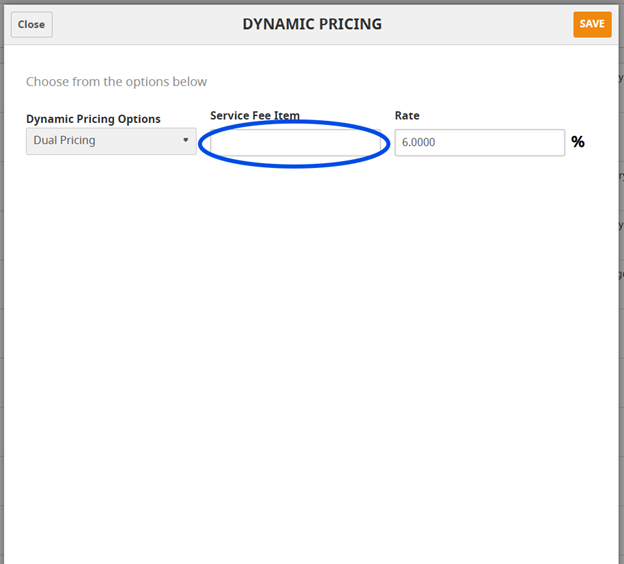
The Service Fee Item is used when a customer pays on a House Account using a credit card. This fee will appear as a separate line item on the paid invoice, labeled according to the name entered in the ‘Service Fee Item’ field.
To enable Dual Pricing in CashierLive, follow these steps:
- Log in to your CashierLive account.
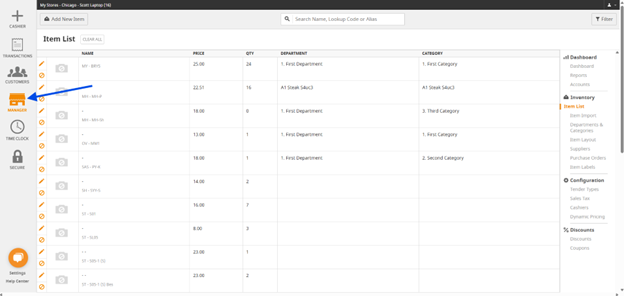
- Click the ‘Manager’ tab on the left-hand navigation panel.
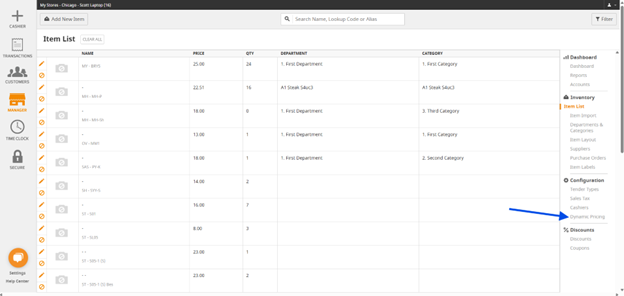
- Under Configurations, click ‘Dynamic Pricing’ on the right.
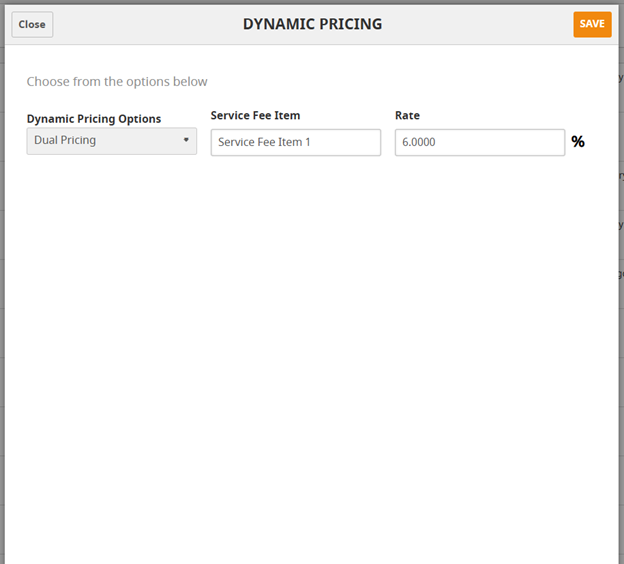
- A Dynamic Pricing modal will appear.
Managing Dual Pricing
Once Dual Pricing is enabled, follow these steps to configure and manage it:
- In the Dynamic Pricing modal, select ‘Dual Pricing’ from the drop-down menu.
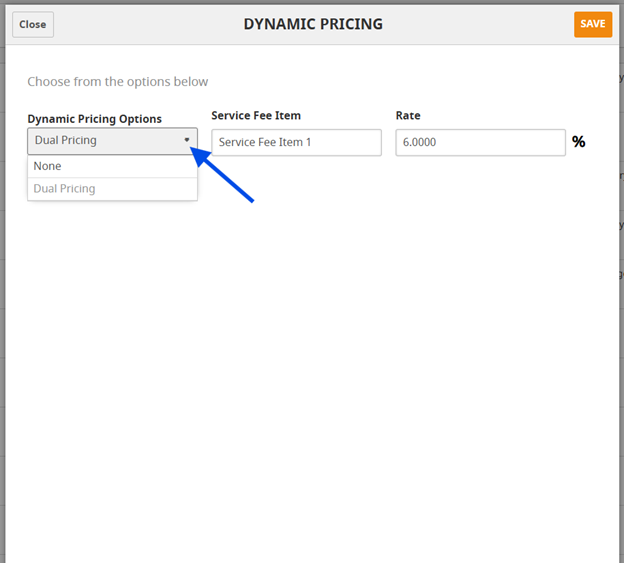
- In the Dynamic Pricing modal, select ‘Dual Pricing’ from the drop-down menu.
- Enter the name of the Service Fee Item.
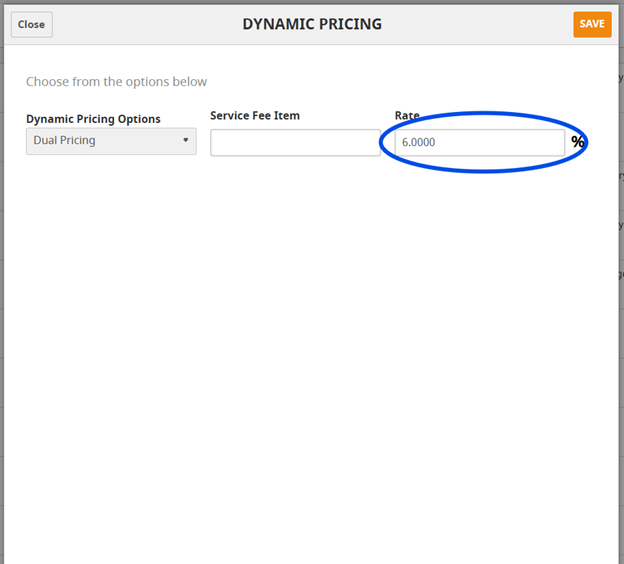
- Enter the desired percentage to cover processing fees.
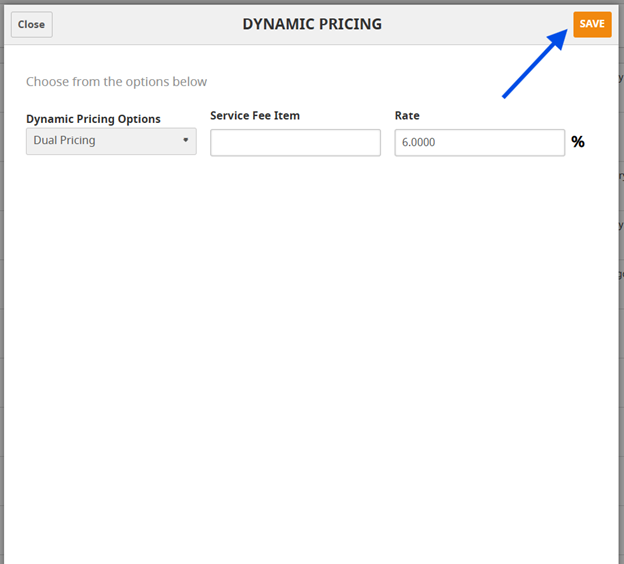
- Click ‘Save’ in the top right corner.
By following these steps, you can successfully implement Dual Pricing, ensuring processing fees are covered while maintaining transparency with customers.